Bridge Your Fediverse Accounts to Bluesky with a Custom Domain Handle
A few days ago I came across a blog post that reminded me that I had intended to bridge my fediverse accounts to Bluesky using Bridgy Fed. I tend to cross-post most “micro blog” text posts to both Mastodon and Bluesky anyway, but occaisionally I post something to one place or the other. Plus, I’ve just setup a Pixelfed account for photo sharing and it turns out you can bridge that in the exact same way.
The downside is the default bridged user handles are really long and unweildy, which makes them a pain to share. But after digging through the Bridgy Fed documentation, it turns out you can still use a custom domain handle for these bridged accounts, which makes them much easier to share. My fediverse accounts are now bridged as:
- masto.chrismcleod.social for Mastodon posts
- pixelfed.chrismcleod.social for Pixelfed posts
Things you’ll need, if you want to do this for your own accounts:
- one or more fediverse accounts you want people on Bluesky to be able to interact with
- you’ll need a domain name you can use, and know how to create records for it
Step 1. Bridge Your Account
This is the really easy bit: follow the account @bsky.brid.gy@bsky.brid.gy from the fediverse account you want to bridge. After a few seconds you should receive a private mention/DM from the account letting you know the bridge account has been created on Bluesky.
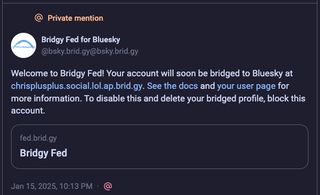
You’ll see by default the account handle is something like your-username.your-fedi-server.com.ap.brid.gy, which is a bit long-winded! Don’t worry, in the following steps we’ll fix that.
Step 2. Create the DNS Records for a Custom Domain Handle
Click the link to your Bridgy Fed user page in the message you just received. On the page that loads, click the 🏷️ icon:
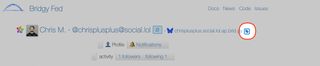
This will copy the DID of the Bluesky account to the clipboard.
Next, load up what ever control panel you use to create DNS records for the domain you want to use. We’re going to create a TXT record for the custom domain handle you want to use for the account, but prefixed with _atproto.. For example:
- If you want your custom handle to be the root domain
example.com, you will create a record for_atproto.example.com. - If you want to use a subdomain — e.g.,
fedi.example.com, you will create_atproto.fedi.example.com.
In my case, I wanted to use masto.chrismcleod.social as an account handle, so created _atproto.masto.chrismcleod.social.
The content of the TXT record is did=<the did you copied from brid.gy>
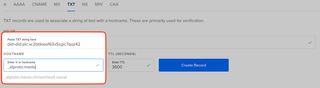
Save the record. Depending on the vagaries of DNS, this record might take anywhere from a few seconds to several hours to start working. You can check if you’re ready to proceed by using Bluesky Debug and checking the handle:
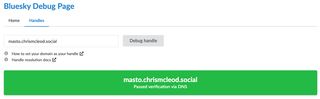
Once your handle is resolving, you can move on to the final step.
A Quick Aside for Pixelfed accounts
Pixelfed DMs/private mentions don’t seem to support links when I tested this out earlier. Once you’ve received the DM from Bridgy Fed, to get the DID to enter into the DNS record, you’ll need to enter your Pixelfed account (e.g., your-account@pixelfed.social) on this page.
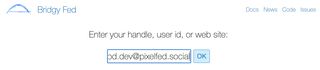
This will load your user page and you can get your DID to proceed with creating your DNS record.
Step 3. Update Bridgy Fed
Nearly there. Here comes the hardest step.
Reply to the DM/private mention from @bsky.brid.gy@bsky.brid.gy with a message containing username <your new handle>. For example, I sent:
username masto.chrismcleod.socialThat’s it! After a few seconds, Bridgy will reply to let you know it’s been a success.
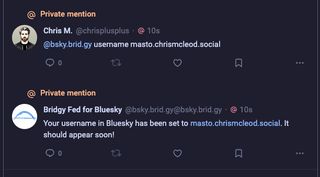
And sure enough, after a few moments you should be able to see the update reflected on the Bluesky interface:
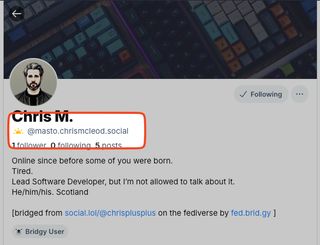
Hopefully this short guide helps you get your own bridged accounts setup with easier to use custom handles.